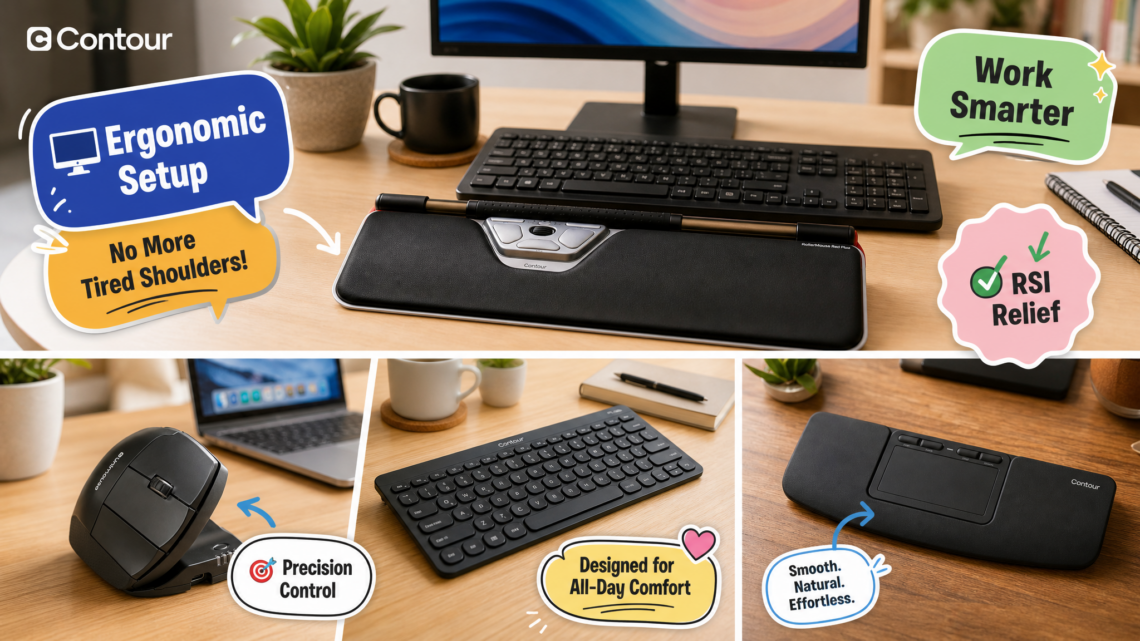
A productive workspace is rarely built around one dramatic purchase. More often, it improves through a series of small corrections: a screen raised to a more comfortable height, a chair adjusted properly, a keyboard that sits where your shoulders can relax, and an input device that does not force the same tense movement hundreds of times a day. That last piece is where many desk setups still fall short.
For years, the standard mouse has been treated as a default rather than a decision. It works, it is familiar, and it takes almost no thought to buy another one. But familiarity is not always the same as fit. People who spend long days moving between spreadsheets, design software, video timelines, browser tabs, and meetings may eventually notice that the ordinary mouse-and-keyboard arrangement asks them to reach, grip, twist, and repeat more than they would like.
Contour Design approaches that problem from a broader angle. Its range is not limited to one alternative mouse shape. It includes centered rollerbar mice, adjustable vertical mice, a full-size touchpad, a matching keyboard, and a dedicated controller for editing workflows. The common theme is straightforward: make the tools at the center of the workday feel more considered.
That idea matters because “ergonomic” can become an empty label if it only describes a curved shell or a soft wrist rest. A useful ergonomic tool should affect how a person actually works. Does it reduce unnecessary reaching? Does it allow a more natural hand position? Does it put frequently used commands closer to the fingers? Does it adapt to different desk sizes, software habits, and dominant-hand preferences? Those are more meaningful questions than whether a product simply looks different.
The current selection from Contour Design is especially interesting because it gives users several ways to rethink the same familiar task: controlling a cursor. Some people will prefer a centered rollerbar below the keyboard. Others will feel at home with a vertical mouse they can tilt to their own preference. A video editor may care less about either option and more about a tactile jog wheel. In other words, the best fit depends on the work, not just the category label.
Start with the movement you repeat most
The simplest way to choose a productivity tool is to observe the part of your routine that feels needlessly busy. If your mouse lives far to the right of your keyboard and you constantly reach for it, a centered device may deserve a closer look. If using a conventional mouse leaves your hand feeling locked into one flat position, an adjustable vertical design may make more sense. If you are frequently zooming, scrolling, dragging, or navigating with gestures, a larger touch surface could be more natural. And if your day is built around editing clips, audio, or images, shortcut access may be the real priority.
This is worth emphasizing because there is no universal “best ergonomic mouse.” The right device is the one that suits the way you navigate, type, and create. Switching to a new form factor can also involve an adjustment period. That is normal. A new input tool changes muscle memory, especially when it changes where the cursor control sits or how the hand rests. It is usually better to give a new setup enough time to become familiar rather than judging it after ten rushed minutes.
The RollerMouse idea: keep the cursor control in front of you
Contour’s RollerMouse line is built around a centered rollerbar positioned directly below the keyboard. Instead of reaching off to one side for a traditional mouse, the user moves the cursor by rolling or sliding a bar that spans the front of the device. The appeal is easy to understand in a compact workspace: the cursor control remains inside the main typing zone.
The RollerMouse Red Plus is one example of this approach. It combines a centered rollerbar with a deeper wrist support area, making it a notable option for people who prefer more forearm contact at the desk. It offers six customizable buttons, multiple cursor-speed settings, wireless connectivity, and compatibility with Mac and PC systems. The larger support area is not a trivial design choice; it changes the visual and physical footprint of the workstation and may appeal to users who want the device to feel substantial rather than minimal.
The RollerMouse Pro Wireless Slim takes the same central-control concept in a slimmer direction. It is designed with a lower-profile wrist rest and includes six programmable buttons, adjustable cursor sensitivity, and wireless use for Mac and PC. For a person who likes a clean desk surface or works with a keyboard that sits fairly low, the slimmer profile may be the more natural pairing.
What makes these products different is not merely the rollerbar itself. It is the change in workflow. A centered pointing device can make it easier to move between typing and cursor work without the familiar side reach. That can be particularly relevant for people whose work alternates constantly between text entry and navigation: finance professionals moving across worksheets, writers selecting and rearranging copy, support teams shifting among browser windows, and office workers living in email, calendars, and documents.
There is also an understated benefit in shared spaces. A rollerbar mouse sits in a fixed, obvious place in front of the keyboard. On a hot desk or home-office setup used by more than one person, it creates a more deliberate input zone. That does not mean it will suit every user immediately—people with years of conventional-mouse habits may need time to adapt—but the layout has a clear logic.
A vertical mouse that does not lock you into one angle
Vertical mice are often recommended as an alternative for people who do not enjoy the palm-down position of a standard mouse. Yet many vertical designs have one fixed angle, which can make the product feel like a trade-off: better for one person, awkward for another. The Contour Unimouse takes a more flexible route by allowing the body to be adjusted through a 35° to 70° tilt range.
That adjustable angle is the defining feature. Rather than assuming that every hand should sit in the same orientation, the Unimouse allows the user to test a more modest tilt or a steeper, more handshake-like position. It also includes an adjustable thumb rest, six programmable buttons, and wireless connectivity for Mac and PC. For someone shopping for a right-handed vertical mouse, those details matter more than a generic promise of comfort.
The Unimouse is likely to appeal to a different user than the RollerMouse. It is still a side-positioned device, so it preserves much of the familiar mouse workflow. The change comes from hand posture and adjustability, not from moving the pointing device to the center of the desk. That may make it an easier transition for someone who wants to keep a conventional cursor-control rhythm while experimenting with a less fixed grip.
It is also a reminder that fit is personal. Desk height, chair armrests, keyboard placement, shoulder width, and hand size all influence what feels natural. A vertical mouse can be a useful option, but it should be part of a complete setup rather than treated as a cure-all. If a keyboard remains too high, a monitor is poorly positioned, or the user spends hours working without breaks, the mouse alone cannot solve every workspace issue. Good setup habits still matter.
When gestures are the better language
Not every task is best handled by a mouse. Touchpads can make particular kinds of navigation feel more fluid, especially when a workflow involves scrolling long documents, zooming into visual material, switching between windows, or using multi-touch gestures. The Contour Touch is a full-size wireless Bluetooth touchpad designed for Windows 10 and Windows 11, with a precision glass surface, multi-touch support, click-anywhere operation, four programmable shortcut keys, and an integrated wrist rest.
A full-size touchpad changes the experience compared with the smaller pad built into a laptop. It gives the hand more room to travel and places gestures on a dedicated desktop surface. For Windows users who already rely on gesture controls, that can make navigation feel less fragmented. The four shortcut keys also offer an opportunity to bring common commands closer, whether that means copy and paste, switching views, opening a frequently used application, or assigning another routine action.
The most important thing about the Contour Touch is that it is not trying to imitate a mouse exactly. It is designed around a different interaction style. A mouse can be excellent for precise selection and controlled movement. A touchpad can be excellent for broad navigation and gesture-led work. Some users may even prefer a mixed setup, using a touchpad for browsing and general navigation while keeping another device nearby for detailed tasks.
Keyboard placement is part of the equation
It is easy to focus entirely on the mouse, but keyboard choice affects the entire workstation. A keyboard determines where the arms sit, how far the hands travel, and whether a pointing device can be placed close enough to avoid an awkward reach. The Contour Balance Keyboard is a full-size wireless keyboard with a USB receiver, U.S. layout, numeric keypad, 18 programmable keys, a dedicated AI key, and a Windows layout.
For people who need a numeric keypad for accounting, data entry, inventory, or financial work, a full-size layout remains practical. The point is not to eliminate familiar tools for the sake of minimalism. It is to arrange them more intentionally. When paired with a centered pointing device, a keyboard becomes part of a unified working area instead of a separate object with a mouse pushed off to the side.
Programmable keys can also make a quiet but meaningful difference. Repeated commands are often where time disappears: opening a browser tab, inserting a common phrase, launching a tool, or triggering a command used dozens of times per day. Setting up shortcuts takes a few minutes, but it can make the desk feel more responsive to the person using it. The best shortcuts are usually not flashy. They simply remove tiny interruptions from an already familiar workflow.
Anyone considering a keyboard upgrade should think about the dimensions of the whole desk. A full-size keyboard is useful, but it also occupies more horizontal space. If the goal is to keep a rollerbar or touchpad directly in front, measure the available area and consider the monitor stand, document holder, desk mat, and any laptop that shares the surface. A thoughtful layout is more valuable than a crowded collection of individually impressive devices.
For editors, creators, and shortcut-heavy work
The ShuttlePRO v2 belongs to a different branch of the Contour Design lineup. It is a multimedia controller with a jog wheel and 15 custom-programmable buttons, intended for video, audio, and photo editing on Mac and PC. This is not a replacement for a keyboard or mouse. It is a specialist tool for people whose work becomes faster when common actions are assigned to physical controls.
That distinction is important. Creative applications often place a huge number of commands behind menus, key combinations, and timeline controls. A dedicated controller can bring a practical subset of those actions into a repeatable physical layout. The jog wheel can be particularly useful when scrubbing through footage or audio, while programmable buttons can be assigned to the commands that define a person’s editing routine.
For a video editor, that might mean play, pause, cut, mark in, mark out, zoom, or export-related actions. For an audio editor, it may mean moving through a track, placing markers, or toggling tools. For a photographer, it can be about navigating images and applying repeated commands. The exact mapping will vary, which is why programmability matters. The controller is most useful when it reflects the software and habits of the person at the desk.
There is something appealingly practical about this kind of tool. It does not promise to make creative work effortless. Editing still requires judgment, patience, and attention. But reducing repetitive trips through menus or complicated key combinations can make the process feel more direct. For professionals and committed hobbyists, that is often enough reason to consider a dedicated control surface.
The Innovation of Central Pointing
One of the most significant contributions Contour Design has made to the ergonomic space is the popularization of the central pointing device. Traditional mice force users to reach outside the width of their shoulders, creating an asymmetrical posture that strains the shoulder capsule and neck. Contour’s signature RollerMouse series places the cursor control directly below the keyboard. This allows users to work with their arms resting comfortably in front of them, keeping the body in a relaxed, symmetrical, and neutral posture.
Let’s explore how Contour Design implements this philosophy across their flagship product lines.
1. The Heavyweight Champion of Relief: RollerMouse Red
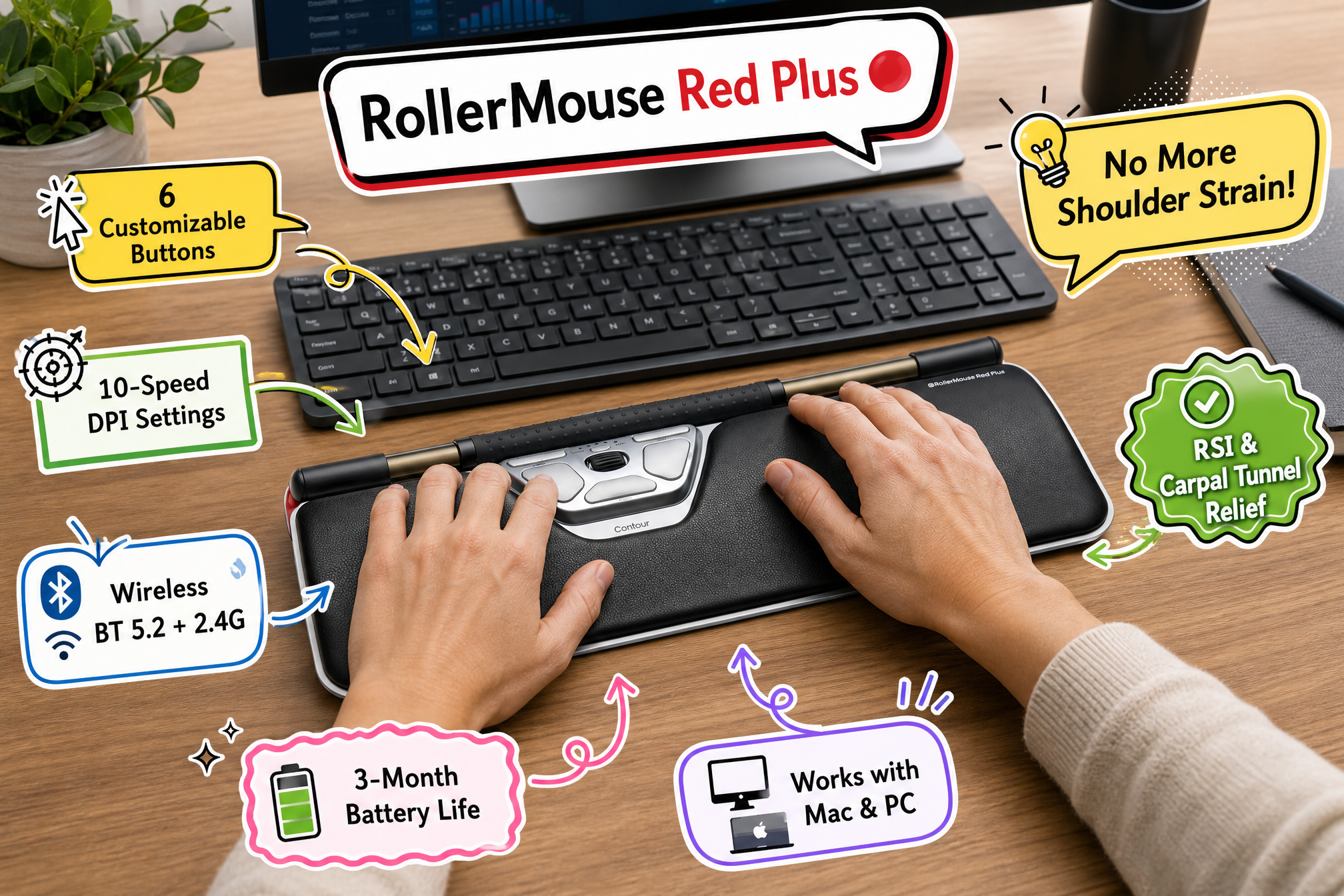
The Contour RollerMouse Red is a masterclass in premium ergonomic engineering, specifically designed to combat severe strain, RSI, and Carpal Tunnel Syndrome. At its heart is the iconic, textured central rollerbar. This unique control mechanism allows users to navigate their screens using both hands interchangeably, distributing the workload and preventing any single digit or wrist from bearing the brunt of the day’s clicking.
Constructed with a robust aluminum housing and a luxurious, deep wrist rest, the RollerMouse Red screams durability and premium comfort. It offers true customization with 6 programmable buttons and 10 dynamic speed settings, seamlessly adapting to both Mac and PC environments. The wireless plus model takes this a step further by eliminating desk clutter while offering an expansive, padded surface that supports not just the wrists, but the forearms, providing a floating sensation that melts away tension.
2. Sleek, Smart, and Streamlined: RollerMouse Pro
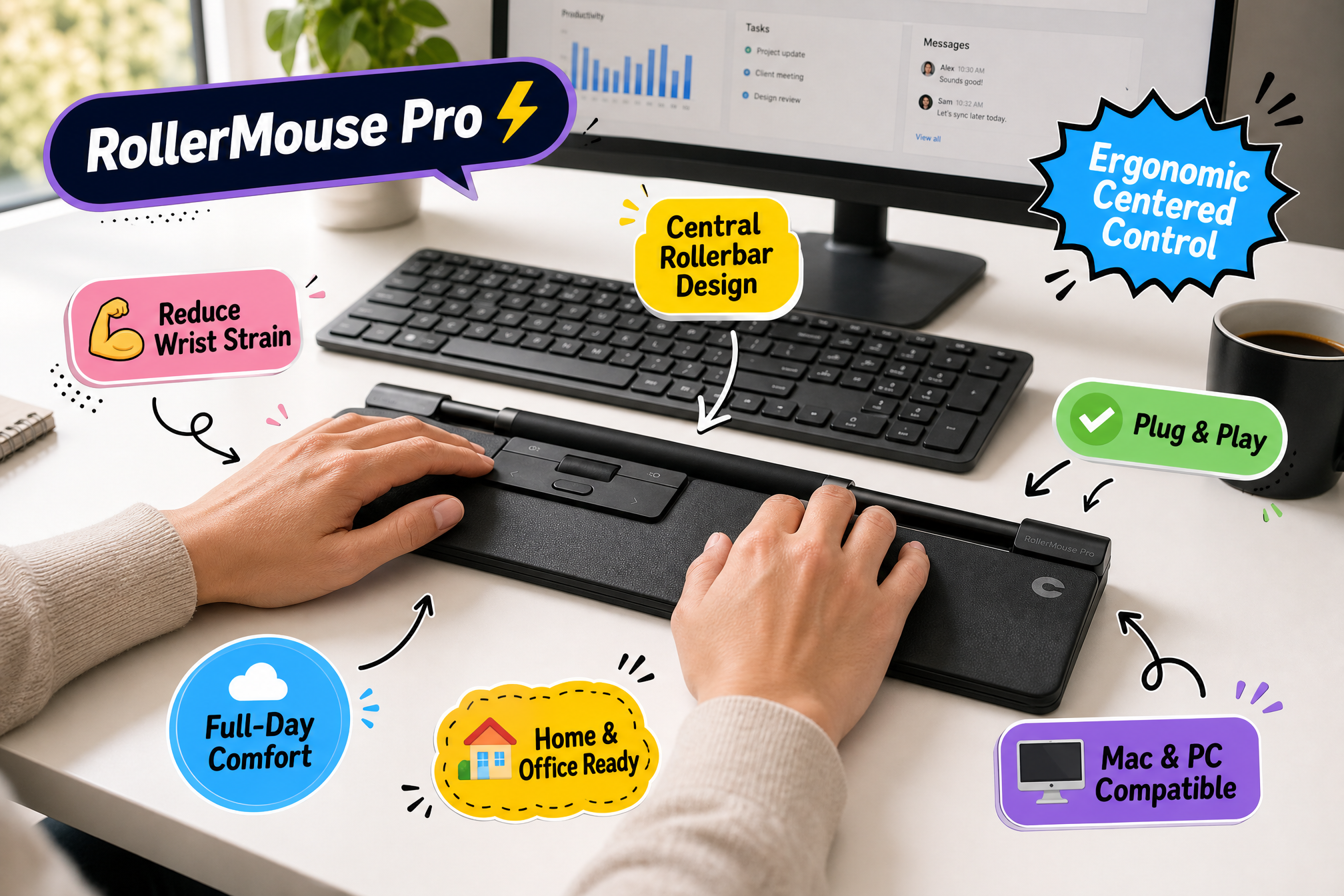
For professionals seeking the profound benefits of a central pointing device but with a more minimalist aesthetic, the Contour RollerMouse Pro is the perfect answer. This device takes the core tenets of neck, shoulder, and wrist pain relief and packages them into a remarkably slim profile.
The RollerMouse Pro maintains the productivity-boosting central rollerbar while introducing a more discreet, modern design that blends flawlessly into contemporary office setups. Offering 600-2800 DPI for precision tracking and 6 programmable buttons, it proves that ergonomic health does not require a sacrifice in speed or accuracy. The plug-and-play wireless nature of the device ensures that whether you are bouncing between a home office or a corporate desk, your ergonomic sanctuary travels with you easily.
Beyond the Rollerbar: Versatility for Every Workflow
Contour Design understands that ergonomics is not a one-size-fits-all science. While central pointing devices are a revelation for many, other professionals prefer the traditional grip format but require a design that honors the natural resting state of the human hand.
3. The Pinnacle of Customization: Contour Unimouse
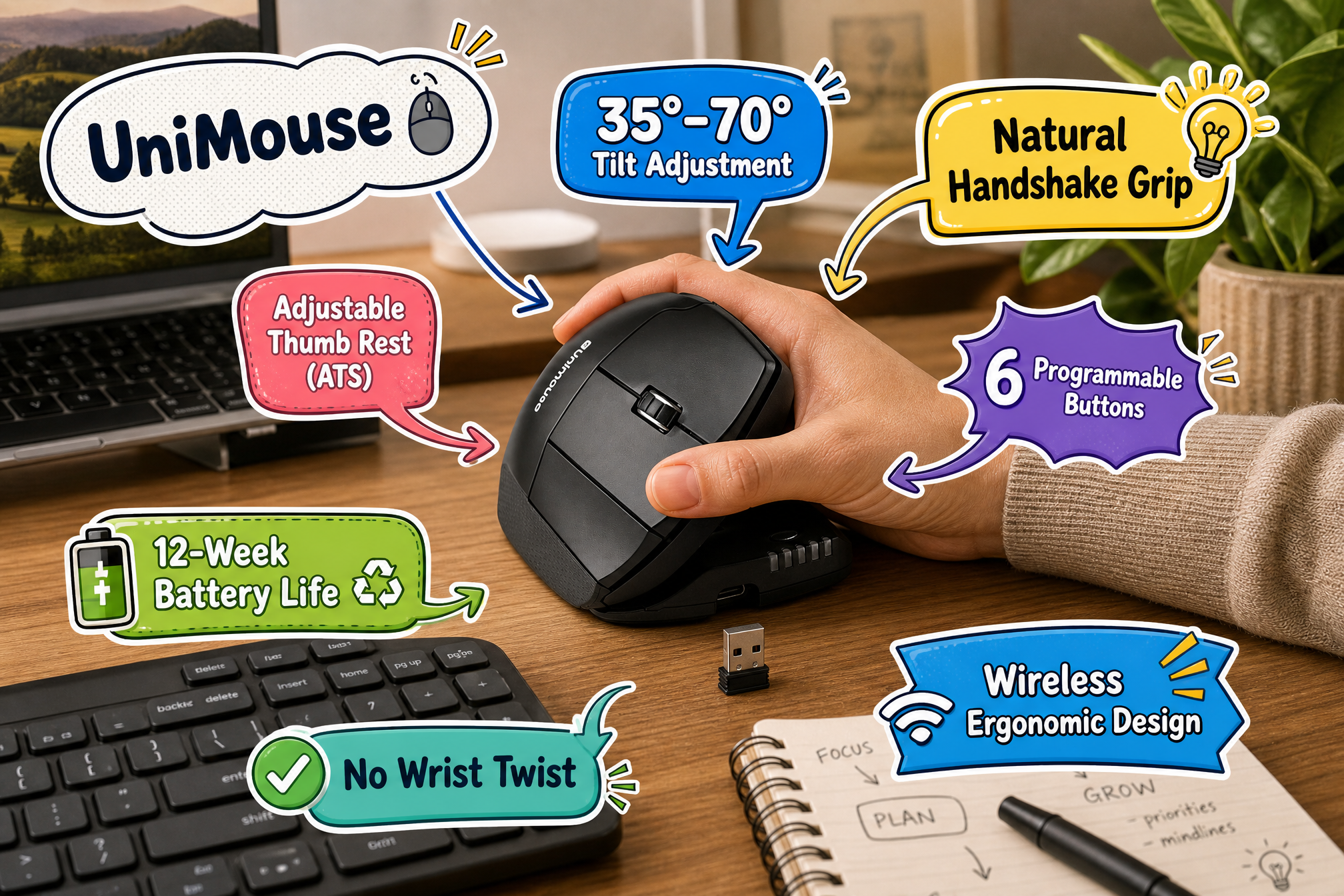
The Contour Unimouse is nothing short of a mechanical marvel. Standard flat mice force the radius and ulna bones in the forearm to twist, leading to the dreaded “mouse arm.” The Unimouse eliminates this by adopting a vertical posture—but it doesn’t stop there.
Unlike fixed-angle vertical mice, the Unimouse features a patented articulating hinge that allows users to adjust the tilt of the mouse anywhere from 35 to 70 degrees. Furthermore, it boasts an articulating thumb support that can be extended, retracted, and rotated to fit literally any hand size or shape. This means the user is not adapting to the mouse; the mouse is dynamically adapting to the user. With 6 programmable buttons and reliable wireless connectivity, the Unimouse is the ultimate customizable weapon against wrist pain.
4. The Modern Gestural Experience: Contour Touch
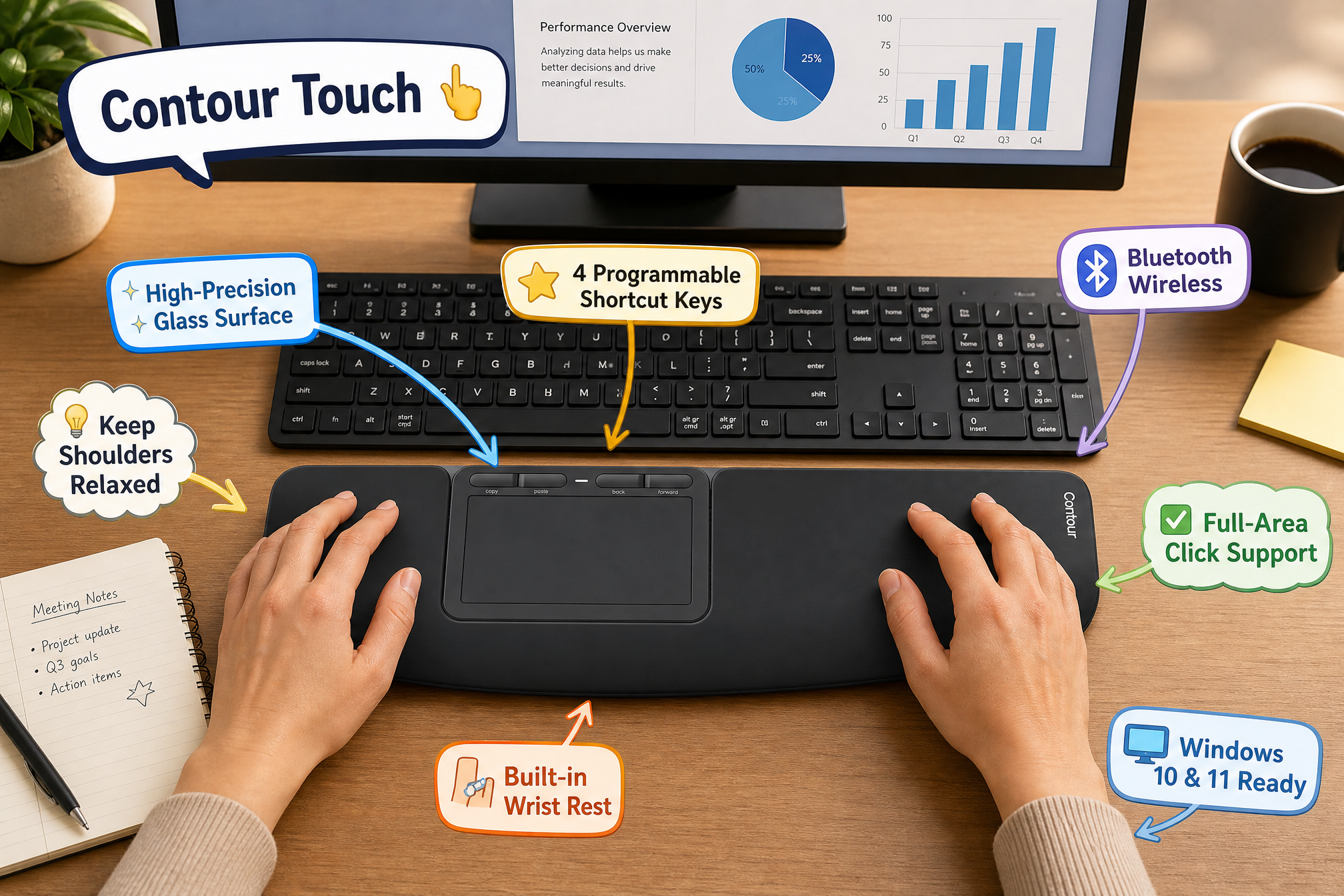
As operating systems evolve, so do the ways we interact with them. For power users of Windows 10 and 11 who rely heavily on multi-touch gestures, the Contour Touch provides a spectacular ergonomic alternative.
This high-precision, multi-touch glass trackpad allows users to swipe, pinch, and zoom with frictionless ease. Because it features a “click anywhere” design, users can navigate with incredibly light, low-impact movements, vastly reducing the force required to interact with their PC. Paired with 4 programmable shortcut keys and a built-in full-size wrist rest, the Contour Touch blends the intuitive nature of smartphone and tablet navigation with heavy-duty ergonomic support.
5. The Perfect Companion: Contour Balance Keyboard
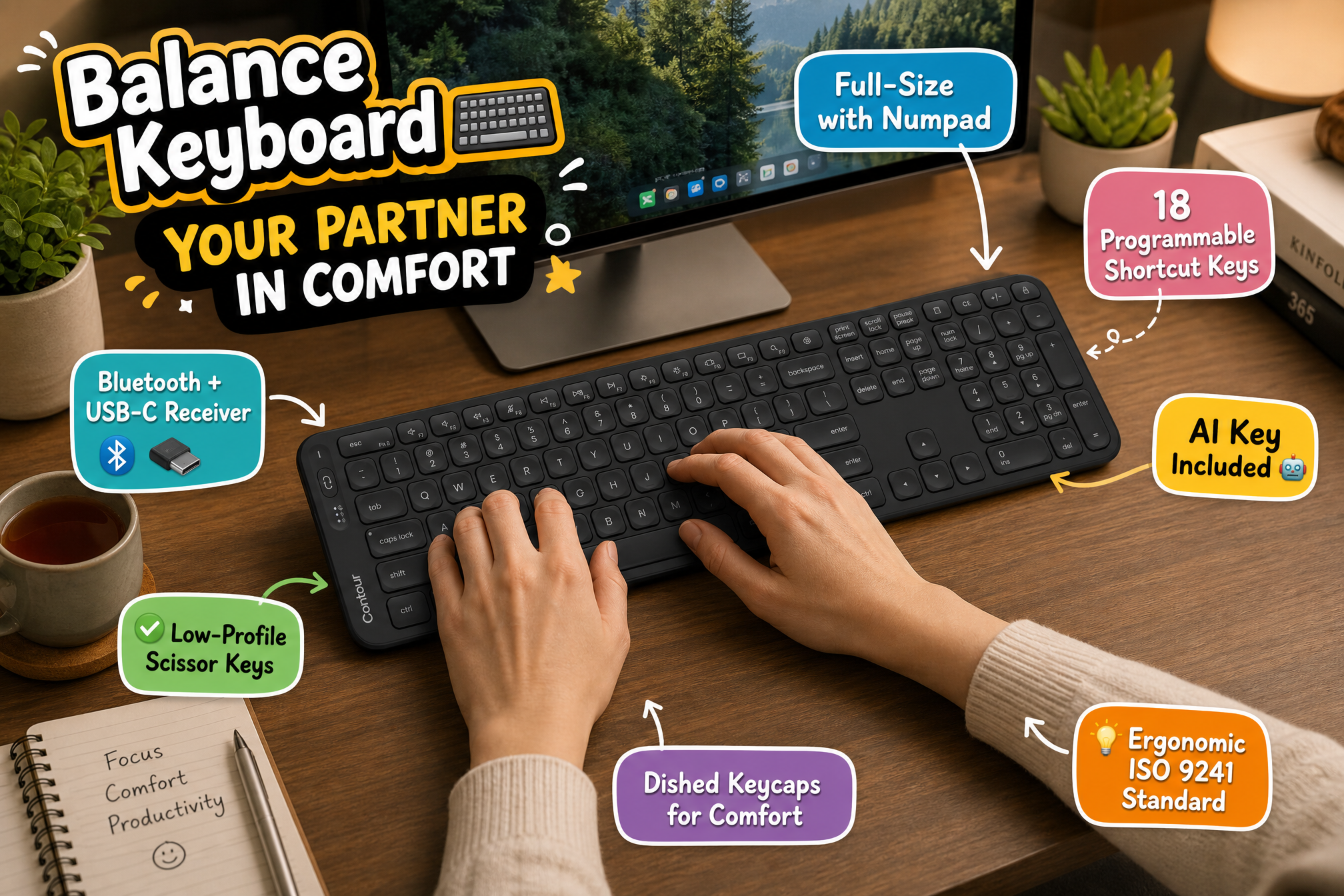
An ergonomic mouse is only half of the equation; the keyboard plays an equally vital role in workspace wellness. The Contour Balance Keyboard is explicitly designed to harmonize with the RollerMouse series, though it is a powerhouse in its own right.
This full-size wireless keyboard features a US layout complete with a numeric keypad, ensuring no functional compromises are made. What sets it apart is its low-profile edge, which aligns perfectly with the RollerMouse, minimizing the vertical reach required by the fingers and keeping the wrists flat and neutral. Additionally, it brings modern productivity to the forefront with 18 programmable keys and a dedicated AI key, allowing users to streamline repetitive tasks and integrate cutting-edge software shortcuts seamlessly into their daily routine.
6. The Creator’s Dream: Contour ShuttlePRO v2
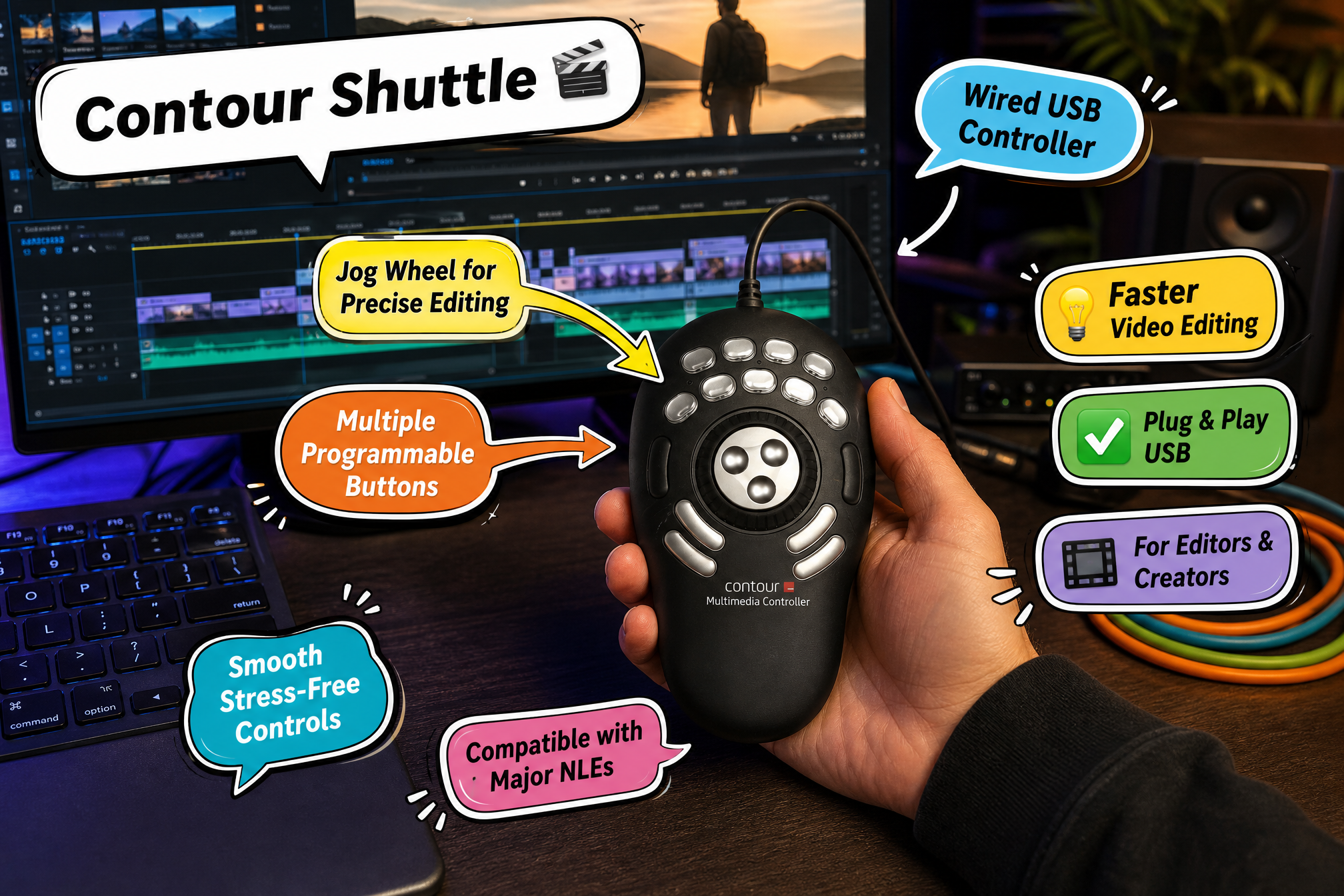
Contour Design’s expertise extends beyond standard office applications and directly into the highly demanding world of creative professionals. Video editors, audio engineers, and photo retouchers often suffer from severe repetitive strain due to the thousands of micro-movements required to scrub through timelines and tweak parameters.
The ShuttlePRO v2 is a specialized multimedia controller that changes the game entirely. Featuring a tactile, spring-loaded jog wheel and 15 custom programmable buttons, it allows creatives to assign their most-used macros and timeline controls to a highly ergonomic, hand-fitting device. By moving the heavy lifting of timeline navigation away from the mouse and keyboard and onto the ShuttlePRO v2, creatives can work faster, more intuitively, and most importantly, without the agonizing hand cramps that usually accompany long editing sessions.
How to build a better Contour Design setup without overbuying
The strongest desk setups usually begin with one clear pain point rather than a shopping list. If reaching for a mouse is the issue, start with a rollerbar design. If a conventional mouse grip feels too rigid, look at the adjustable Unimouse. If Windows gestures are central to the workday, the Contour Touch may be the more compelling first addition. If keyboard shortcuts and editing commands dominate the job, the Balance Keyboard or ShuttlePRO v2 could be the right place to begin.
It is also reasonable to combine products gradually. A centered rollerbar and a compatible full-size keyboard create a coherent control area for office work. A touchpad can supplement another pointer for gesture-heavy Windows use. The ShuttlePRO v2 can sit beside an existing keyboard-and-mouse arrangement as a focused creative tool. There is no requirement to replace every device at once.
- For spreadsheet and document-heavy work: consider a centered RollerMouse setup with a keyboard that keeps the workspace organized.
- For users who want an adjustable mouse angle: the Unimouse offers a more personalized path into vertical-mouse use.
- For Windows gesture navigation: a full-size touchpad can provide a spacious, dedicated control surface.
- For video, photo, and audio workflows: a programmable controller can keep high-frequency actions within reach.
- For shared desks: prioritize tools with intuitive placement and programmable settings that can suit more than one workflow.
Before committing, it helps to make a small inventory of the current workstation. Note the available desk width, whether the keyboard includes a number pad, which operating system is in use, how many devices need wireless connectivity, and which actions are repeated most often. These details sound ordinary, but they shape whether a new productivity tool becomes part of daily work or ends up stored in a drawer.
The real value is in the daily routine
Good workspace tools rarely announce themselves after the first hour. Their value becomes clearer over a week of ordinary work: fewer unnecessary reaches, a smoother transition between typing and navigation, commands that are easier to access, and a desk that feels less improvised. That is the more realistic promise of an ergonomic setup. It is not about turning a workday into a luxury experience; it is about removing friction from the tasks that already fill the day.
Contour Design’s product range stands out because it recognizes that productivity is not one-size-fits-all. A centered rollerbar, an adjustable vertical mouse, a gesture-focused touchpad, a programmable keyboard, and an editing controller all solve different problems. The useful question is not which one looks most advanced. It is which one best matches the movement and work pattern you would like to improve.
For anyone ready to move beyond the default mouse-and-keyboard arrangement, exploring Contour Design can be a practical starting point. Choose the tool that fits the work in front of you, allow time to adjust, and build the rest of the desk around the habits you want to make easier.